How to Set Up Google Ads Conversion Tracking for Calls and Forms
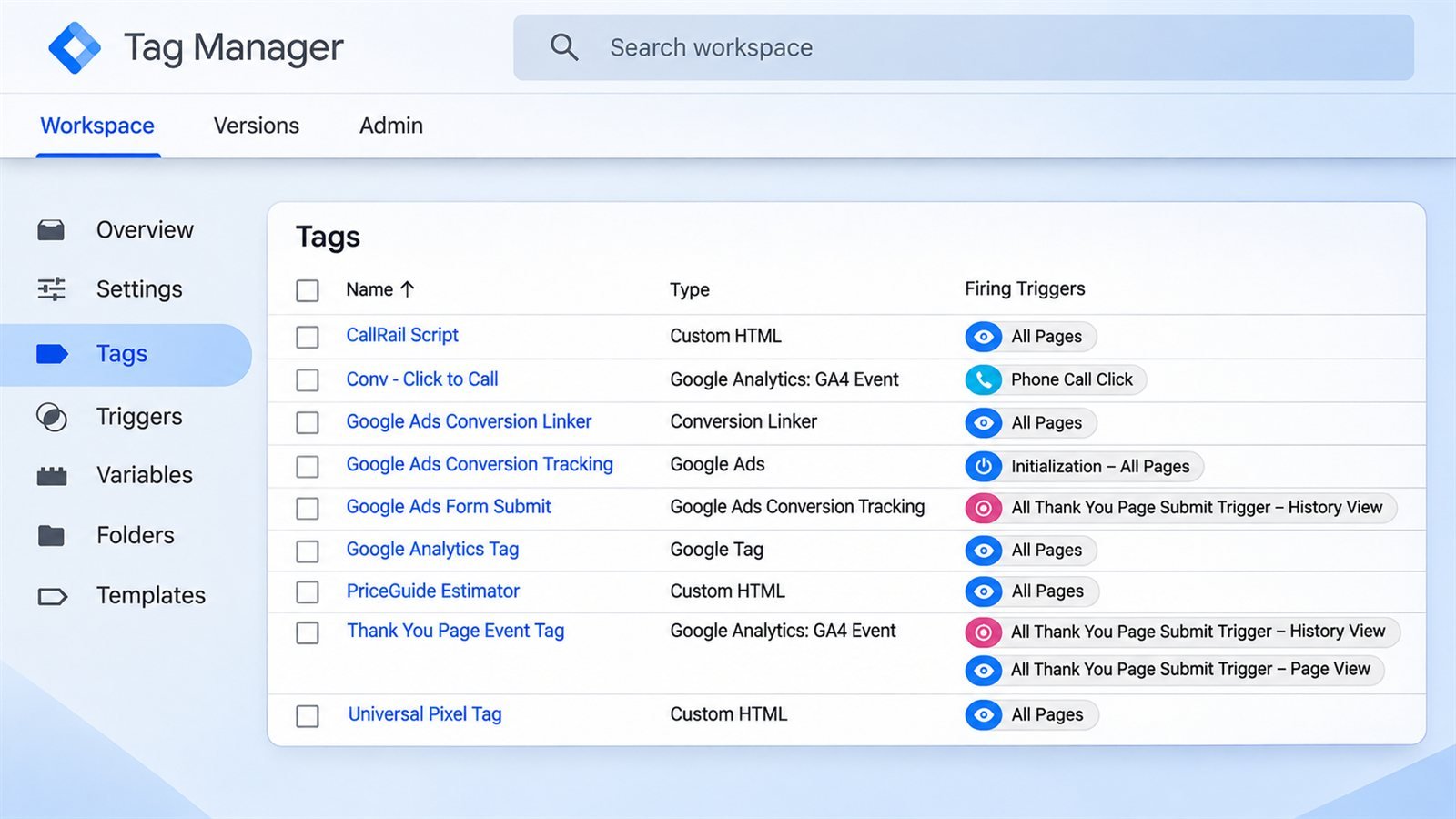
If you run Google Ads for a local business and don’t track conversions, you’re guessing. You can see clicks and how much you spent, but not which of those clicks turned into a phone call or a quote request.
Conversion tracking fixes that. It tells Google Ads when someone does something that matters to your business, like calling you or filling in your contact form. This guide covers what to track, how to set up each type, and the mistakes that make the numbers wrong.
Why Clicks Aren’t Enough
A click means someone visited your website. It doesn’t mean they called. Without conversion tracking:
- You can’t tell which keywords bring leads and which only cost money.
- Google’s automated bidding has nothing useful to aim for. It will chase clicks instead of customers.
- You can’t work out what each lead costs you, so you can’t tell if the ads are profitable.
For a local service business, the actions that count are almost always phone calls and form submissions. That’s where to start.
Step 1: Decide What Counts as a Lead
Before touching any settings, write down the actions you want to track. For most local businesses that list is:
- Calls straight from your ads.
- Calls to the phone number on your website, from people who arrived through an ad.
- Contact or quote form submissions.
- Booking requests, if you take bookings online.
Leave out things like “visited the contact page” or “scrolled the homepage”. They’re easy to count but they aren’t leads, and counting them makes your results look better than they are.
Step 2: Install the Google Tag
Google Ads needs a small piece of code on your website, called the Google tag, to see what visitors do after clicking an ad. You can add it in one of three ways:
- Directly in your site’s code, in the head section of every page.
- Through Google Tag Manager, which makes later changes easier without editing the site.
- Through your website platform. Many builders and WordPress plugins have a box to paste your tag ID into.
You find the tag in Google Ads under Goals → Conversions → Settings, or Google will offer it when you create your first website conversion.
Step 3: Track Form Submissions
In Google Ads, go to Goals → Conversions and create a new conversion action for your website. The cleanest way to track a form is a thank-you page:
- Set your form to send people to a separate page, such as
/thank-you/, after they submit. - Create the conversion so it counts a visit to that page as a lead.
- Make sure the thank-you page can’t be reached any other way, for example from your menu, or it will count visits that aren’t leads.
If your form shows a message on the same page instead of redirecting, you can track the form submission as an event, usually set up through Google Tag Manager.
Step 4: Track Phone Calls
Calls are often the most valuable leads a local business gets, and the ones most often left untracked. There are three types to set up.
Calls from ads
When you add your phone number to your ads as a call asset, Google can show a forwarding number and record calls made straight from the ad. You choose a minimum call length so short or accidental calls don’t count. Google’s default is 60 seconds, which suits most service businesses.
Calls to the number on your website
Google can swap the number on your site for a forwarding number, only for people who arrived from an ad. That lets you see which ad and keyword led to the call. It needs a small extra snippet added alongside the Google tag.
Clicks on your phone number on mobile
You can also count taps on a clickable phone number on your site. This shows intent, but it doesn’t confirm a call happened, so treat it as a weaker signal than the two above.
Google’s forwarding numbers aren’t available in every country, so check what’s supported in your market.
Step 5: Set the Right Settings for Each Conversion
A few settings make a big difference to how useful the data is.
- Count: “One”. For leads, count one conversion per click. If someone submits your form twice, it’s still one lead.
- Primary or secondary. Set real leads, like calls and form submissions, as primary, because those are what bidding aims for. Weaker signals, like phone number taps, can be secondary so you can see them without bidding on them.
- Value. If some leads are worth more than others, give them a value. If you’re not sure, leaving them all equal is fine to start.
Step 6: Test Everything
Don’t assume it works. Check it.
- Use Google’s Tag Assistant to confirm the Google tag fires on your pages.
- Submit your own form and make sure you land on the thank-you page.
- Check the conversion status in Google Ads over the next day or two. It should change from “Unverified” or “No recent conversions” once it starts recording.
- Make a test call to your website number from a phone, after arriving through an ad, if you can.
Common Mistakes
- Counting the same lead twice. If you import conversions from Google Analytics and also track them with the Google Ads tag, don’t set both as primary. Pick one source for each action.
- Tracking page views as leads. A visit to the contact page isn’t a lead. Only count completed actions.
- Forgetting calls. For many local businesses, calls bring most of the work. Tracking forms only can make good campaigns look like they aren’t working.
- Setting it and never checking. Website changes can break tracking without anyone noticing. Check your conversions every month.
Next Level: Track Booked Jobs, Not Just Leads
A lead isn’t a customer. Once the basics work, the next step is telling Google which leads turned into paying jobs. You can do this by importing them back into Google Ads, using offline conversion imports or enhanced conversions for leads. Then you can bid toward the leads that actually become work, not just the ones that call.
Even without that setup, keep a simple record of which leads booked. It’s the only way to know your real cost per job.
FAQs
Do I need Google Tag Manager?
No. You can add the Google tag directly to your site. Tag Manager just makes it easier to add and change tracking later without editing your website.
Should I use Google Analytics or the Google Ads tag for conversions?
Either can work. The Google Ads tag is the most direct for Google Ads. If you import from Google Analytics instead, just make sure you aren’t counting the same lead in both.
Why does Google Ads show fewer conversions than leads I actually got?
Some leads come from people who saw an ad, then searched for you later or called from a business card. Tracking won’t catch everything. That’s why recording where each booked job came from is still worth doing.
How long before the data is useful?
Give it a few weeks of steady traffic before making big decisions. A handful of conversions isn’t enough to judge a keyword or a campaign.
Final Takeaway
Set up tracking for calls and forms before you spend serious money on Google Ads. Count only real leads, set them as primary, test that they record, and check them every month. Then use the data to cut what doesn’t work and put more behind what does.
Not sure whether to start with ads at all? Read Google Ads or SEO first? I walk through conversion tracking setup step by step inside the Google Ads & SEO Masterclass community.
Keep reading
- Google Ads or SEO First? A Guide for Local Businesses Should a local service business start with Google Ads or SEO? How each one works, what they cost in time and money, and how to decide which comes first.
- Why I Built a US Company From South Africa: The Story Behind Iron Lead Agency Why Dalton Stoltz, a South African entrepreneur, built Iron Lead Agency: a US lead generation company for contractors, and the case for thinking globally.